Multiply artwork around a centre with Radial Array in Studio. Copies, sweep, push out, and scale step spiral walkthrough, feature 14 of 69. Watch and try in Studio.
Turn one square into a nested spiral with Radial Array, all in your browser. This is Feature 14 of 69 in the 3DPlotter V3 series: a walkthrough of the Radial Array modifier. Place a shape, add the modifier, tune Copies, Sweep, Push Out, and Scale Step for a pseudo-3D effect, export G-code, and plot in red on cardstock. No Inkscape, no copy-paste-rotate by hand.
How to use Radial Array
Select the layer whose linework you want to transform
Open Studio → Add Modifier → Pattern → Radial Array
A modifier node is appended to the layer stack (non-destructive)
Reorder modifiers in the stack; later modifiers see earlier output
Tune parameters in the modifier card in the right sidebar; preview updates on the canvas
Menu path: Add Modifier → Pattern → Radial Array
The story behind this plot
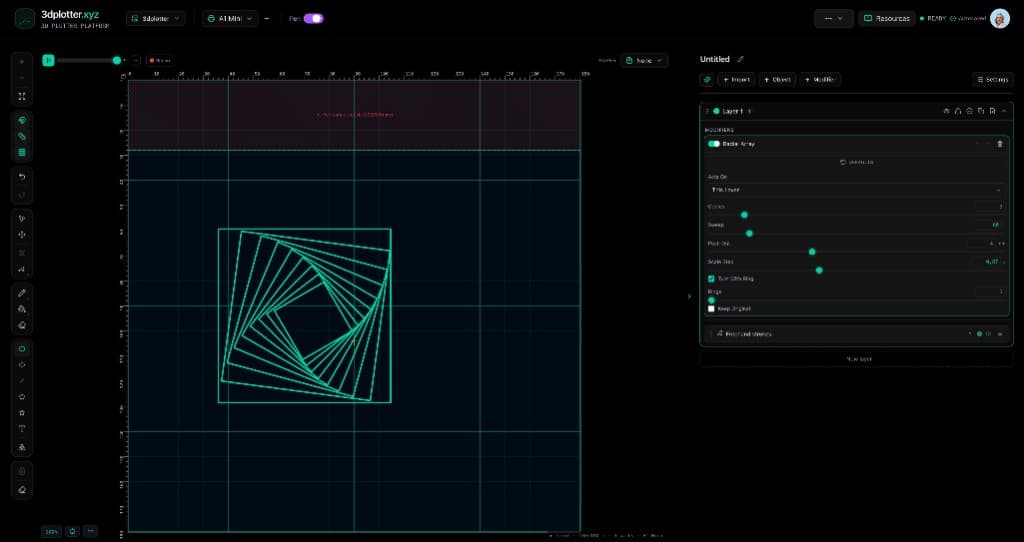
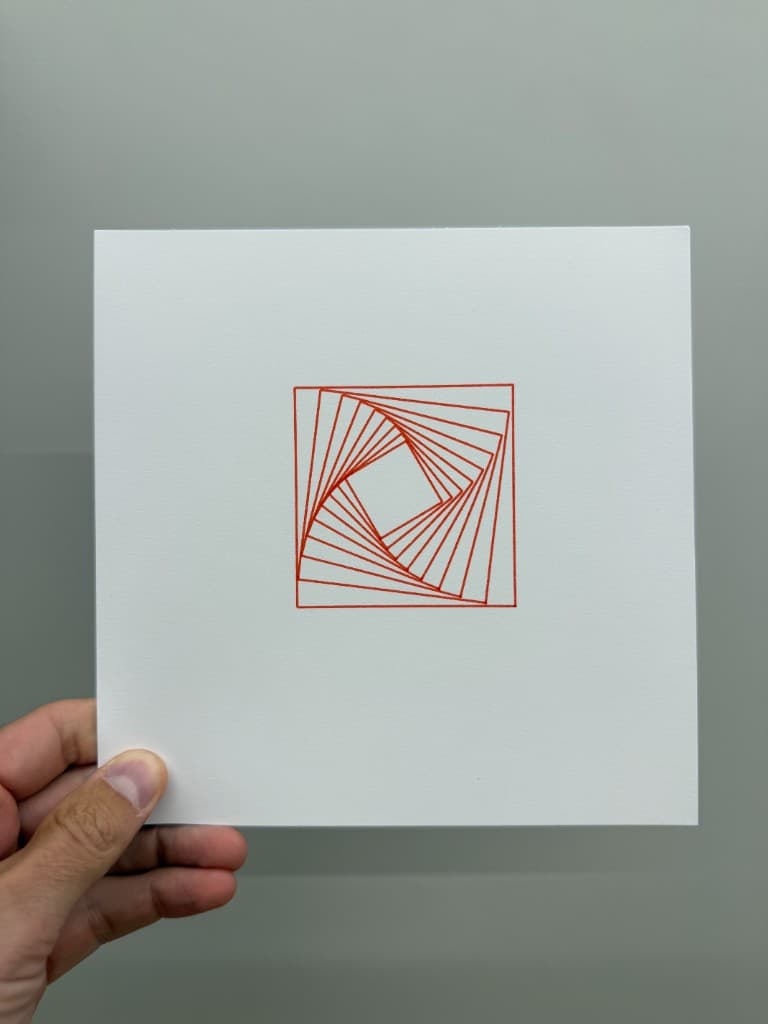
This piece starts as a single square on the bed. I add Radial Array under Add Modifier → Pattern → Radial Array and Studio repeats the shape around the layer centre — each copy rotated and scaled so the outlines nest into a spiral. In the video I dial Copies, Sweep, Push Out, and Scale Step until the pattern feels deep, almost 3D, then export G-code and plot the result in red on cardstock.
One source shape, dozens of pen strokes, no manual duplicate-and-rotate in another app.
What you'll learn in the video
Place a shape or linework on a layer (square, freehand, import, or generator output)
Open Add Modifier → Pattern → Radial Array (or + Modifier on the layer)
Tune Copies — how many rotated instances appear in the ring
Adjust Sweep — how many degrees the copies spread around the centre (up to 360°)
Use Push Out to shift the array on the bed and change how the spiral sits in the frame
Set Scale Step below 1.0 so each copy shrinks slightly and nests inside the last
Toggle Turn With Ring so each copy rotates with its position on the ring
Try Rings, Ring Spacing, and related controls for mandala-style layouts
Export G-code and plot the finished spiral on your pen holder
Radial Array features
Centre-point repetition: paths duplicate around the artwork bounds centre
Copies (2–64): count of instances per ring
Sweep (15°–360°): angular spread of the array
Push Out: radial offset in mm — moves the pattern on the bed
Scale Step: per-copy scale multiplier for shrinking or growing spirals
Turn With Ring: rotate each copy with its slot on the ring
Rings: stack multiple concentric arrays with spacing, per-ring copy count, size, and phase
Keep Original: include the unmodified source paths in the export
Acts On: This Layer or This Layer and Below
Non-destructive: remove or reorder the modifier to restore the single shape
Why Radial Array beats manual duplication
Most workflows mean copy-paste-rotate in Illustrator, nudging each instance by eye until the mandala lines up. Radial Array is live on the canvas: change Copies or Scale Step, preview instantly, and export one G-code file from Studio.
Key controls
Acts On: own, options: This Layer, This Layer and Below
Copies: 6 (2-64 step 1)
Sweep: 360° (15-360° step 5)
Push Out: 0mm (-100-200mm step 1)
Scale Step: 1× (0.5-1.5× step 0.01)
Tune acts on, copies, sweep, push out, and scale step in the right sidebar. Open Studio to see every control.
Modifier stack: May add, drop, or reorder paths; selection maps reset for this layer
Acts On: Choose *This Layer* or *This Layer and Below* in the right sidebar.
What I plot with Radial Array
Mandalas, rosettes, and nested square spirals from one source shape
Op-art and pseudo-3D depth with Scale Step and Push Out
Logos and motifs multiplied around a centre on Bambu Lab A1 Mini, Prusa, Creality, and other pen-holder setups
Combined with Dashes, Offset, Infill, and other modifiers (stack order matters)
G-code with pen-up travel between repeated strokes
Frequently asked questions
How do I add Radial Array in 3DPlotter?
Place linework on a layer, then Add Modifier → Pattern → Radial Array, or click + Modifier on the layer and choose Radial Array.
What does Radial Array do?
It repeats the layer's paths around a centre point. Each copy is rotated (and optionally scaled) so you get rosettes, mandalas, and spirals from one shape.
What is Scale Step in Radial Array?
Scale Step multiplies the size of each successive copy. Values below 1.0 shrink each ring inward — ideal for nested square spirals like the video plot.
What is Push Out?
Push Out offsets the array radially in millimeters, shifting where the pattern sits on the bed and changing how the spiral reads in the frame.
What is Sweep?
Sweep sets how many degrees the copies spread around the centre, from 15° to a full 360° circle.
What does Turn With Ring do?
When enabled, each copy rotates with its position on the ring so corners stay aligned with the spiral (shown as Turn With Ring in Studio).
Is Radial Array non-destructive?
Yes. It is a modifier on the layer stack. Remove or disable it to return to the original single shape.
Does modifier order matter with Radial Array?
Yes. Radial Array then Dashes dashes every copy; Dashes then Radial Array copies dashed segments. Reorder modifiers in the stack to get the result you want.
Try Radial Array
Open 3DPlotter Studio, follow the steps above, and export a test plot. Lifetime V3 access is €29.90. Creator Bundle (€39.90) adds Map to Pen Plot, String Art, Wax Seal, and 3D Model to SVG.