Duplicate shapes in a grid with Linear Array in Studio. Columns, rows, turn step, and scale step walkthrough, feature 16 of 69. Watch and try in Studio.
Duplicate one square into an overlapping grid with Linear Array, all in your browser. This is Feature 16 of 69 in the 3DPlotter V3 series: a walkthrough of the Linear Array modifier. Design a shape, add the modifier, tune Columns, Rows, gaps, Turn Step, and Scale Step, pull copies closer for artistic overlap, export G-code, and plot in purple on cardstock. No Inkscape, no manual duplicate-and-nudge.
How to use Linear Array
Select the layer whose linework you want to transform
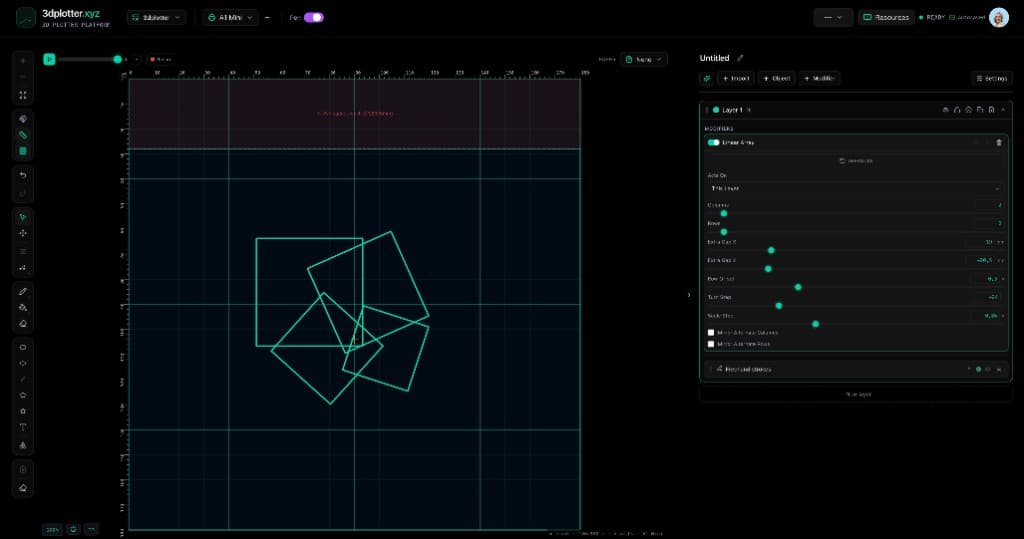
Open Studio → Add Modifier → Pattern → Linear Array
A modifier node is appended to the layer stack (non-destructive)
Reorder modifiers in the stack; later modifiers see earlier output
Tune parameters in the modifier card in the right sidebar; preview updates on the canvas
Menu path: Add Modifier → Pattern → Linear Array
The story behind this plot
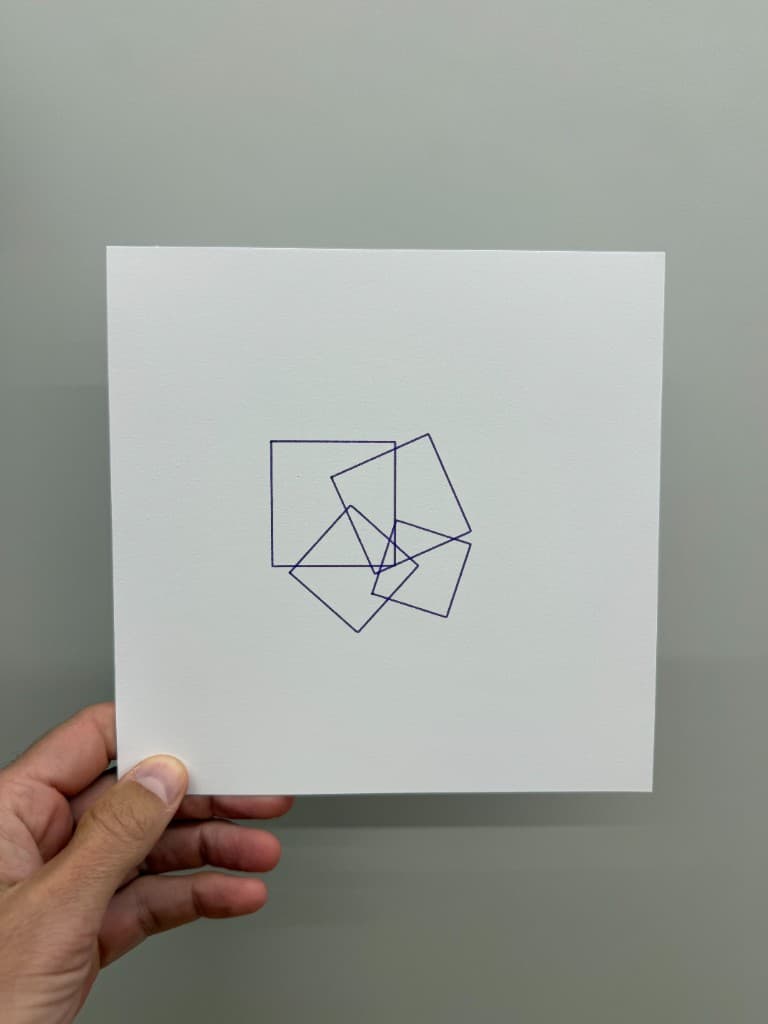
This piece starts as one square on the bed. I add Linear Array under Add Modifier → Pattern → Linear Array and Studio duplicates the shape into a row or grid — each copy stepped by the artwork size plus Extra Gap X and Extra Gap Y. In the video I set Columns and Rows, dial Turn Step and Scale Step so the copies rotate and shrink as they repeat, then tighten the gaps until the squares overlap into something more artistic than a plain grid.
Whenever you change the shape or add linework on the layer, the array updates and copies it across the grid. Export G-code and plot the cluster in purple on cardstock.
What you'll learn in the video
Draw or place a shape on a layer
Open Add Modifier → Pattern → Linear Array
Set Columns and Rows — how many copies across and down (up to 24 each)
Tune Extra Gap X and Extra Gap Y — spacing beyond the shape's own width and height (mm)
Use Row Offset to stagger every other row for brick-like layouts
Adjust Turn Step — rotate each successive copy (degrees)
Set Scale Step — shrink or grow each copy for cascading overlap effects
Try Mirror Alternate Columns or Mirror Alternate Rows for seamless repeat tiles
Center the array on the bed, export G-code, and plot on your pen holder
Linear Array features
Grid duplication: repeat paths in columns and rows, centred on the original artwork
Extra Gap X / Y: control how tight or loose the grid feels (negative gaps pull copies together)
Row Offset: shift odd rows horizontally as a fraction of column pitch
Turn Step (−45° to 45°): cumulative rotation per copy for pinwheel and overlap looks
Mirror alternate columns/rows: flip every other copy so motifs tile edge to edge
Acts On: This Layer or This Layer and Below
Non-destructive: remove or reorder the modifier to restore a single shape
Live updates: edit the source shape and every copy refreshes
Why Linear Array beats manual grids
Most workflows mean duplicate in Illustrator, nudge by hand, and fix rotation on each cell. Linear Array steps by the shape's real bounds, grows the grid from the centre, and previews every change on the plotter bed before export.
Key controls
Acts On: own, options: This Layer, This Layer and Below
Columns: 3 (1-24 step 1)
Rows: 1 (1-24 step 1)
Extra Gap X: 0mm (-50-100mm step 0.5)
Extra Gap Y: 0mm (-50-100mm step 0.5)
Tune acts on, columns, rows, extra gap x, and extra gap y in the right sidebar. Open Studio to see every control.
Modifier stack: May add, drop, or reorder paths; selection maps reset for this layer
Acts On: Choose *This Layer* or *This Layer and Below* in the right sidebar.
What I plot with Linear Array
Overlapping square clusters and pinwheel grids from one source shape
Repeat tiles and wallpaper motifs with mirror columns or rows
Editioned geometric art on Bambu Lab A1 Mini, Prusa, Creality, and other pen-holder setups
Combined with Radial Array, Dashes, Offset, and other pattern modifiers
G-code with pen-up travel between every copy
Frequently asked questions
How do I add Linear Array in 3DPlotter?
Place linework on a layer, then Add Modifier → Pattern → Linear Array, or click + Modifier on the layer.
What does Linear Array do?
It duplicates the layer's paths in a grid of Columns and Rows, stepping each copy by the artwork size plus Extra Gap X and Extra Gap Y.
What is Turn Step?
Turn Step adds rotation (in degrees) to each successive copy in the grid, so squares can overlap in pinwheel-style clusters.
What is Scale Step in Linear Array?
Scale Step multiplies the size of each copy. Values below 1.0 shrink each instance — useful with tight gaps for layered overlap.
What are Extra Gap X and Extra Gap Y?
Extra gap is added to the shape's width and height to set column and row pitch. Use negative values to pull copies closer together.
What does Row Offset do?
Row Offset shifts every other row horizontally as a fraction of the column step, for brick or staggered grids.
What do Mirror Alternate Columns / Rows do?
They flip every other copy so open edges on a motif meet as reflections — handy for seamless repeat tiles.
Is Linear Array non-destructive?
Yes. It is a modifier on the layer stack. Remove or disable it to return to the original single shape.
Does Linear Array update when I edit the source shape?
Yes. Change the underlying shape or strokes and the grid copies refresh automatically.
Try Linear Array
Open 3DPlotter Studio, follow the steps above, and export a test plot. Lifetime V3 access is €29.90. Creator Bundle (€39.90) adds Map to Pen Plot, String Art, Wax Seal, and 3D Model to SVG.