Save shapes and signatures to your library and re-place them with Saved Element in Studio. Paper boat and signature walkthrough, feature 15 of 69. Watch and try in Studio.
Save and reuse your best linework with Saved Element, all in your browser. This is Feature 15 of 69 in the 3DPlotter V3 series: a walkthrough of the Saved Element library. Right-click to save a paper boat shape, open Saved Elements in the sidebar, drop saved art and your signature onto a new board, export G-code, and plot in green on cardstock. No Inkscape, no redrawing the same motif every time.
How to use Saved Element
Open Studio → Add Object → Shapes & Imports → Saved Element
Pick from your saved element library to re-place on the canvas
Menu path: Add Object → Shapes & Imports → Saved Element
The story behind this plot
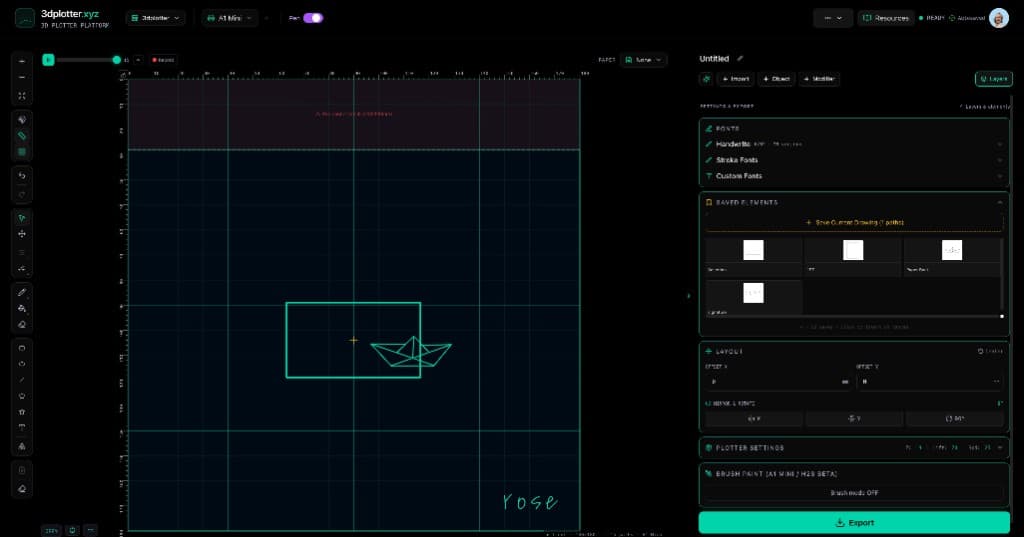
When you draw something you want on every board — a logo, a geometric paper boat, or a handwritten signature — you should not redraw it each time. In the video I place a shape on the bed, right-click → Save Element, name it, and store it in my account library. Later I open the Saved Elements accordion in the right sidebar (or Add Object → Shapes & Imports → Saved Element) and click thumbnails to drop saved art onto a new layout in one tap.
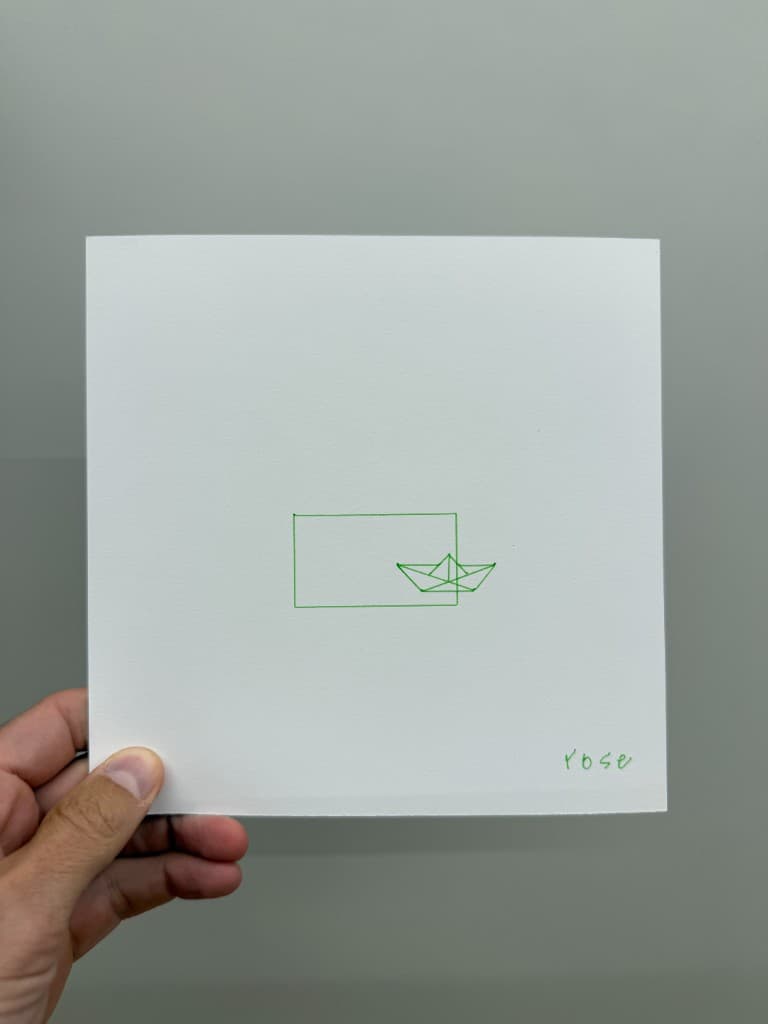
I add a fresh rectangle on the canvas, insert the boat and my rose signature from the library, export G-code, and plot the composition in green on cardstock. Same vectors every time, new bed layout whenever you need it.
What you'll learn in the video
Create a shape or drawing you want to reuse on future boards
Right-click → Save Element, name it, and confirm it is in your library
Open the Saved Elements accordion in the right sidebar to browse thumbnails
Or use Add Object → Shapes & Imports → Saved Element (also Add Object → Import → Saved Element)
Click a saved item to insert it on the canvas instantly
Combine reused elements with new geometry (rectangles, text, imports) on the same board
Use Save Selected Element or Save Current Drawing inside the accordion when something new is worth keeping
Export G-code and plot the finished piece on your pen holder
Saved Element features
Account library: saved elements sync when you are signed in (up to your plan limit)
Thumbnail grid: click to insert; rename or delete from the accordion
Save from selection: right-click context menu or Save Selected Element in the panel
Save freehand sketches:Save Current Drawing (N paths) when paths are on the board without a selected object
Types supported: drawings, text, patterns, QR codes, and more — stored as plot-ready paths
Re-place anywhere: inserted elements land on the bed like any other object; move, scale, and rotate after insert
Workflow speed: signatures, motifs, and whole mini-sketches without copy-paste from old files
Why Saved Element beats copying old boards
Most workflows mean hunting an old SVG, importing, scaling, and hoping nothing else came along for the ride. Saved Element keeps a personal parts library inside Studio: save once from the canvas, insert on the next plot in seconds. No second file, no redrawing your signature by hand.
Key controls
Pick it from the menu, then adjust settings in the right sidebar.
What I plot with Saved Element
Personal signatures and maker marks on every print without redrawing
Reused motifs — logos, boats, icons, and pattern snippets from your library
Multi-element layouts that mix new shapes with saved inserts on one board
Postcards, gifts, and editioned art on Bambu Lab A1 Mini, Prusa, Creality, and other pen-holder setups
G-code from PlotFlow with the same crisp paths every time you insert a saved element
Frequently asked questions
How do I save a shape as a saved element?
Select the object (or finish a freehand drawing), then right-click → Save Element or use Save Selected Element / Save Current Drawing in the Saved Elements accordion. Name it and confirm — it is stored in your account library.
Where do I find my saved elements?
Expand Saved Elements in the right sidebar plotter panel, or choose Add Object → Shapes & Imports → Saved Element to jump straight to the library. Add Object → Import → Saved Element works too.
How do I add a saved element to the canvas?
Click its thumbnail in the grid. Studio inserts the paths on the bed at a sensible position; move, scale, or rotate like any other object.
Can I save my signature for every plot?
Yes. Draw or import your signature once, save it as a saved element, then insert it on any future board without drawing it again.
Can I save a whole sketch, not just one shape?
Yes. You can save a selected element or use Save Current Drawing to store multiple paths from the active layer drawing in one library entry.
Do saved elements require an account?
Yes. The library syncs through your 3DPlotter account when you are signed in.
Does Saved Element work with multi-pen plotting?
Yes. Inserted elements are normal plot paths. Use Pen Palette or per-path ink on layers and modifiers as usual.
Try Saved Element
Open 3DPlotter Studio, follow the steps above, and export a test plot. Lifetime V3 access is €29.90. Creator Bundle (€39.90) adds Map to Pen Plot, String Art, Wax Seal, and 3D Model to SVG.