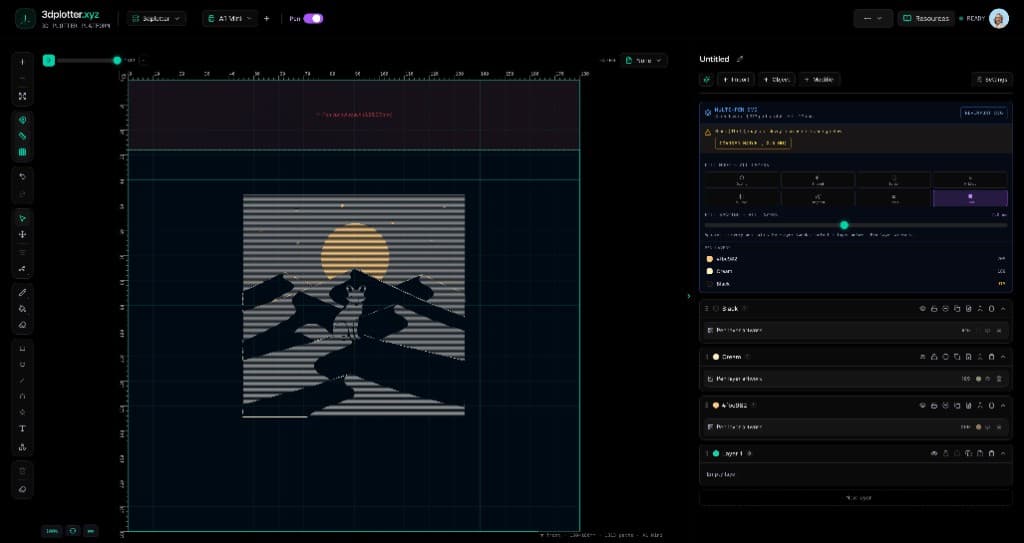
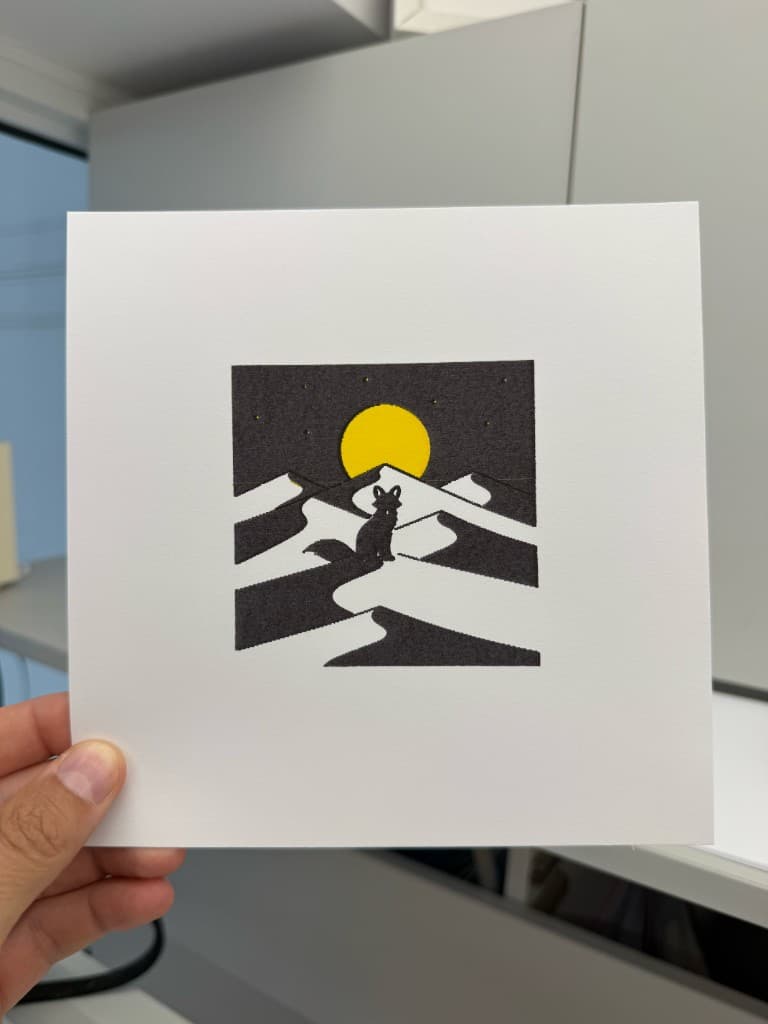
Import multi-layer SVG artwork from GenPlot and plot it on your 3D printer, all in your browser. This is Feature 7 of 69 in the 3DPlotter V3 series: a walkthrough of SVG Import. I load a GenPlot desert fox with separate black and yellow layers, choose Solid fill, resize on the bed, try a one-line cartoon dragon, then export G-code for the Bambu Lab A1 Mini. No Inkscape, no manual layer splitting.
What you'll see in the video
- Add Object → Shapes & Imports → SVG Import with a multi-layer GenPlot desert fox
- Review separate color layers (black, cream, warm yellow) in the import dialog
- Choose Solid fill so each region hatches cleanly, then resize on the A1 Mini bed
- Import a one-line cartoon dragon from GenPlot (single color, outline style)
- Re-import the desert fox to tweak fill and scale before export
- Open export settings and send G-code to the Bambu Lab A1 Mini
- Watch the printer plot the desert fox on white paper in black and yellow
How to use SVG Import
- Open Studio → Add Object → Shapes & Imports → SVG Import
- Choose an SVG file; linework keeps pen separation on import
Menu path: Add Object → Shapes & Imports → SVG Import
The story behind this plot
The desert fox SVG came from GenPlot, our generative creative AI: type a prompt, get plot-ready SVG art in seconds. The file arrives with separate color layers (black fox and dunes, warm yellow moon and sand, cream highlights). I choose Solid fill so each region hatches cleanly, resize to fit the A1 Mini bed, and export. The cartoon dragon in the same video shows the other common GenPlot style: one color, one continuous outline, ready to plot as-is.
SVG Import features
- Multi-color import: separate pen layer per source color, already aligned on the bed
- Fill modes: Outline, Solid, H-Lines, V-Lines, Diagonal, and Crosshatch
- Per-layer controls: toggle colors and preview path counts before you apply
- Scale and True Size: resize on the bed or place at 1:1 artboard dimensions
- Re-import workflow: tweak fill mode, spacing, and scale without starting over
- GenPlot integration: send AI-generated SVG straight from prompt to Studio
- Direct G-code export: PlotFlow outputs pen-optimized paths for your printer
Why SVG Import beats generic workflows
Most workflows mean opening an SVG in Inkscape, splitting layers by color, converting fills to paths, and hoping pens still align. 3DPlotter reads multi-color SVGs, separates pens automatically, offers Solid and hatch fills live, and exports G-code in one place. Pair with GenPlot to go from prompt to plot without leaving the browser.
Key controls
Pick it from the menu, then adjust settings in the right sidebar.
What I plot with SVG Import
- Multi-color poster art from GenPlot, Recraft, Illustrator, and other SVG sources
- Solid-filled regions and hatch styles on imported vector artwork
- Single-line cartoon and logo SVGs that plot in one pen pass
- Layered linework exported as G-code with pen-up travel
- Combined with modifiers, text, and generators on Bambu Lab, Prusa, Creality, and other pen-holder setups
Frequently asked questions
How do I import an SVG into 3DPlotter?
Add Object → Shapes & Imports → SVG Import, choose your file, tune fill mode and scale in the import dialog, then Apply.
Does SVG Import keep separate pen colors?
Yes. Multi-color SVGs create a layer per source color, each ready for its own pen pass.
What fill modes work on SVG import?
Outline, Solid, H-Lines, V-Lines, Diagonal, and Crosshatch. Solid fills regions with pen strokes for poster-style art.
Can I use GenPlot SVGs with SVG Import?
Yes. Generate art in GenPlot, download or send the SVG, then import in Studio. Multi-color posters and single-line cartoons both work.
Can I re-import to change fill or size?
Yes. Re-open SVG Import on the same artwork to adjust fill mode, spacing, and scale without losing layer separation.
Does SVG Import work with multi-pen plotting?
Yes. Each imported color maps to its own layer, ready for Pen Palette or separate pen passes on export.
Try SVG Import
Open 3DPlotter Studio, follow the steps above, and export a test plot. Lifetime V3 access is €29.90. Creator Bundle (€39.90) adds Map to Pen Plot, String Art, Wax Seal, and 3D Model to SVG.
More tools: Feature hub · V3 launch