Trace a pixelated sketch with Underlay in Studio. Lock the reference, draw on top, export G-code, feature 9 of 69. Watch and try in Studio.
Trace a pixelated sketch into pen-ready linework with Underlay, all in your browser. This is Feature 9 of 69 in the 3DPlotter V3 series: a walkthrough of the Underlay tool. Import a reference sketch, lock it on the canvas, draw freehand and Bézier strokes on top, export G-code, and plot a still life. No Inkscape, no second app for tracing.
How to use Underlay
Open Studio → Add Object → Shapes & Imports → Underlay
Import a reference image behind your artwork (not exported to G-code)
Menu path: Add Object → Shapes & Imports → Underlay
The story behind this plot
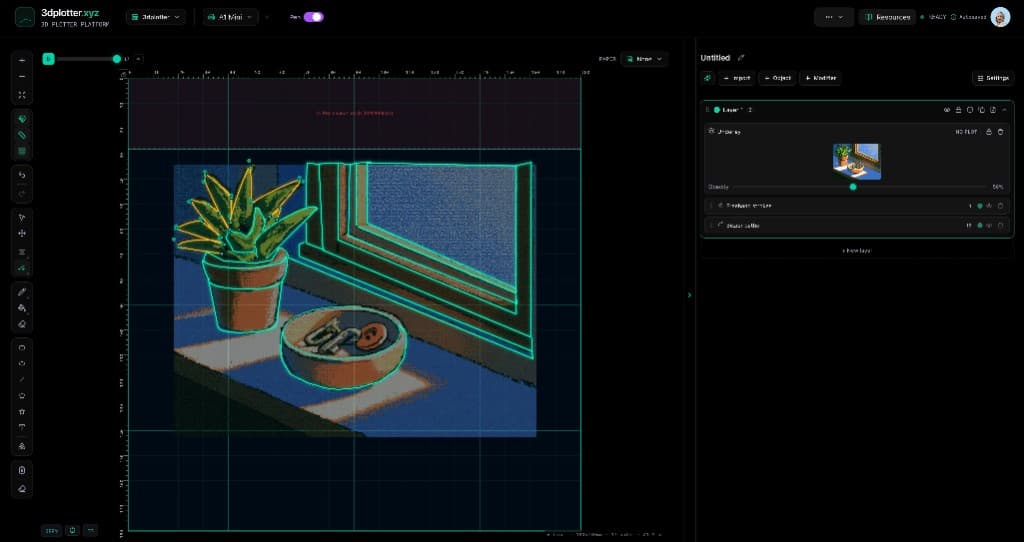
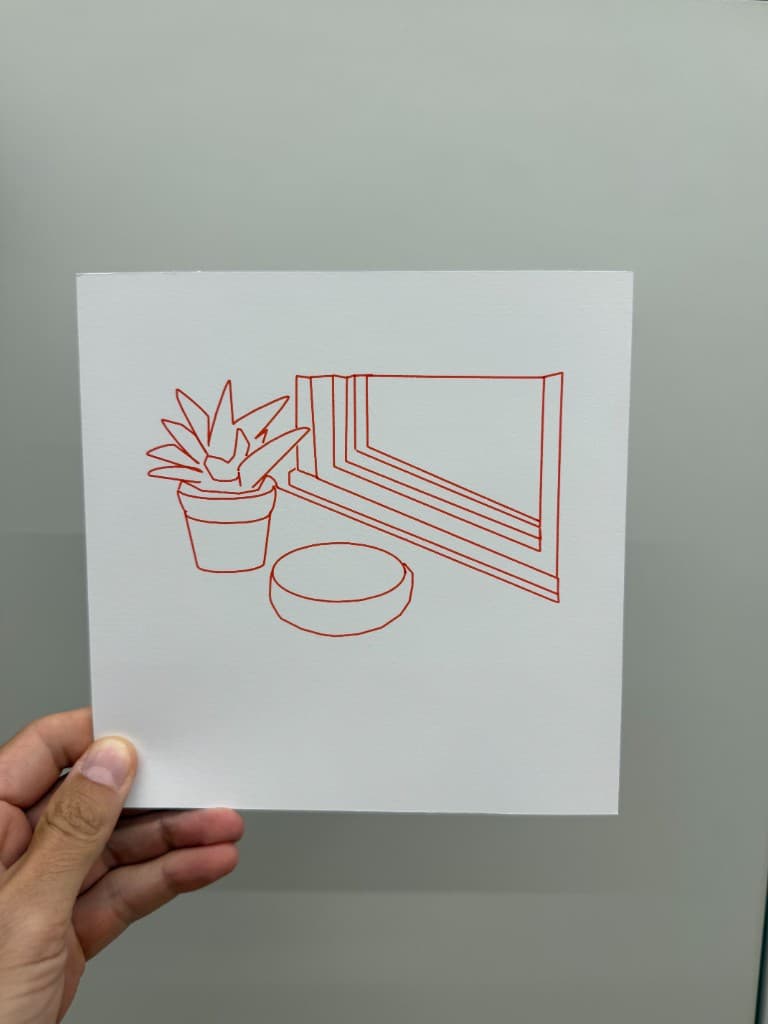
This piece started as a pixelated sketch imported as an Underlay: a reference image that sits behind your linework and never exports to G-code. I locked it in place, dropped the opacity to 50%, and traced the succulent, bowl, and window frame with freehand strokes and Bézier curves on top.
Halfway through the video I talk about something simpler than technique: don't wait for permission. Opinions are noise. Make what you want, with what you have. Export the linework, plot it on cardstock, and keep going.
What you'll learn in the video
Open Studio and add Underlay under Add Object → Shapes & Imports
Import a pixelated sketch as a non-plotting reference image
Adjust opacity so the underlay fades behind your strokes
Lock the underlay so it stays fixed while you trace
Draw on top with freehand and Bézier tools
Hide or remove the underlay before export (only vector paths plot)
Export G-code and plot the still life on your pen holder
Underlay features
Non-plotting reference: the image guides your drawing but never appears in G-code
Opacity slider: fade the sketch so linework stays readable
Lock underlay: pin the reference so it cannot move, scale, or get selected while tracing
NO PLOT badge: clear in the object stack that only your strokes export
Works with all draw tools: freehand, Bézier curves, shapes, and imports on layers above
Also via Import menu: Add Object → Import → Underlay Image
Direct G-code export: PlotFlow outputs only your traced vector paths
Why Underlay beats tracing in other apps
Most workflows mean opening a photo in Illustrator, locking a layer, tracing with the pen tool, and cleaning up nodes for hours. Underlay lives on the bed next to your plotter dimensions: import, lock, draw, export. No second app, no bitmap in the final file.
Key controls
Pick it from the menu, then adjust settings in the right sidebar.
What I plot with Underlay
Still-life and sketch tracing from reference photos and pixel art
Hand-drawn linework guided by a locked underlay at any opacity
Illustrations on Bambu Lab A1 Mini, Prusa, Creality, and other pen-holder setups
Layered vector paths exported as G-code with pen-up travel
Combined with shapes, text, and modifiers once tracing is done
Frequently asked questions
How do I add an underlay in 3DPlotter?
Add Object → Shapes & Imports → Underlay, or Add Object → Import → Underlay Image. Choose your reference file and it appears behind your linework.
Does the underlay get plotted?
No. Underlay is marked NO PLOT in the object stack. Only your traced vector strokes export to G-code.
How do I lock the underlay while tracing?
Click the lock icon on the Underlay row in the object stack. While locked, the reference cannot be selected, moved, or resized on the canvas.
Can I adjust underlay opacity?
Yes. Use the opacity slider on the Underlay row. Lower opacity keeps the sketch visible without overpowering your strokes.
What draw tools work on top of an underlay?
Freehand drawing, Bézier curves, shapes, text, and imports all work on layers above the reference image.
Should I remove the underlay before export?
You can leave it in place. Export ignores the underlay and includes only plot-ready vector paths.
Try Underlay
Open 3DPlotter Studio, follow the steps above, and export a test plot. Lifetime V3 access is €29.90. Creator Bundle (€39.90) adds Map to Pen Plot, String Art, Wax Seal, and 3D Model to SVG.