Lay out numbered and lettered runs with Tally in Studio. Numbers, Latin, Greek, Roman, hex, and binary grids, feature 11 of 69. Watch and try in Studio.
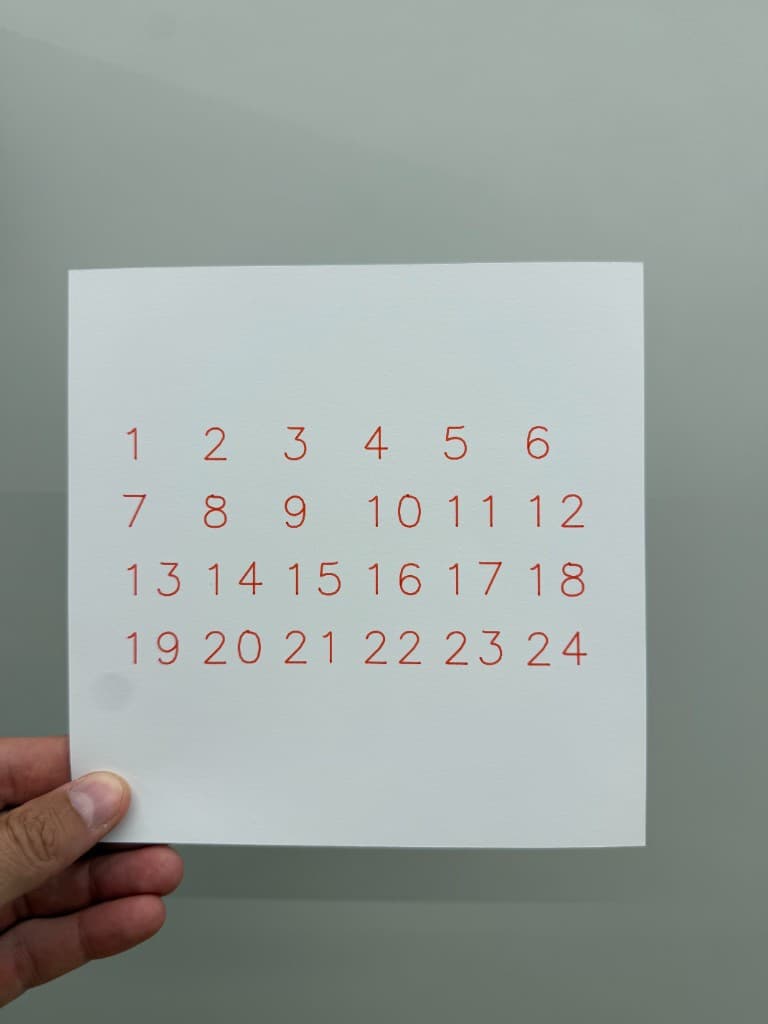
Lay out numbered and lettered runs on a grid with Tally, all in your browser. This is Feature 11 of 69 in the 3DPlotter V3 series: a walkthrough of the Tally tool. Switch between Numbers, Latin, Greek, Roman, Hex, and Binary sequences, tune Count and Columns, export G-code, and plot 1–24 on cardstock. No Inkscape, no manual grid alignment.
How to use Tally
Open Studio → Add Object → Shapes & Imports → Tally
A live Tally element is added to the active layer
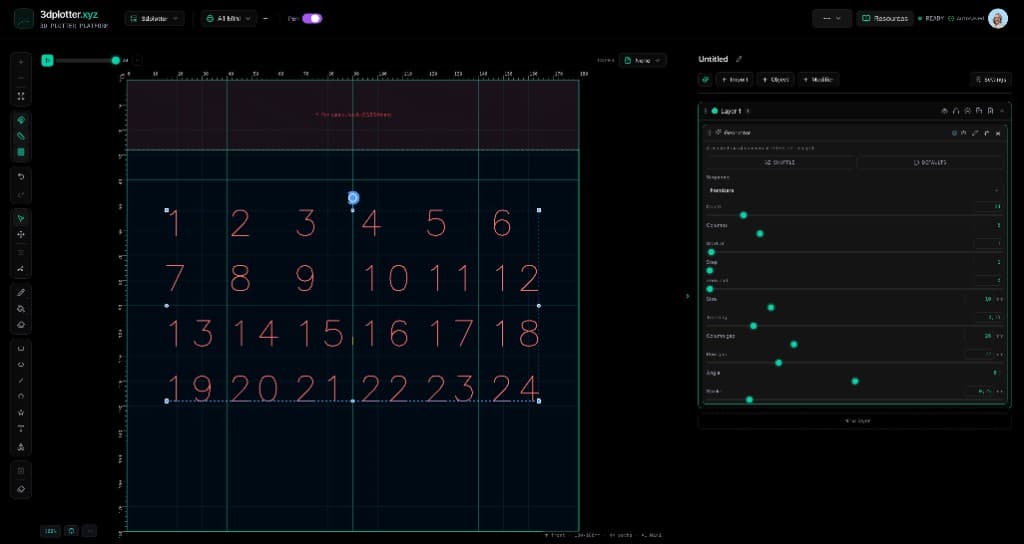
Tune parameters in the element card in the right sidebar (live preview on the canvas)
Export plot-ready G-code when satisfied
Menu path: Add Object → Shapes & Imports → Tally
The story behind this plot
This piece is a Tally grid: numbers 1 through 24 in six columns, each glyph drawn with the same single-stroke Hershey font as the Text tool. In the video I switch Sequence through Numbers, Letters (A–Z), Letters (a–z), Greek (Α–Ω), Roman, Hex, and Binary, then tune Count, Start at, Step, and Zero pad until the run fits the bed.
Plate numbering, swatch labels, and index marks are the usual jobs. Tally lays them out automatically so you export G-code instead of placing every label by hand.
What you'll learn in the video
Open Studio and add Tally under Add Object → Shapes & Imports
Set Sequence to Numbers, Latin letters, Greek, Roman, Hex, or Binary
Tune Count, Columns, Start at, Step, and Zero pad
Adjust Size, Column gap, Row gap, Tracking, and Angle
Use Shuffle to randomize mode, start, step, and pad for quick variations
Export G-code and plot the grid on your pen holder
Count / Columns: how many labels and how many per row (up to 200 items)
Start at / Step: arithmetic progression for numbers; Excel-style columns for letters and Greek
Zero pad: leading zeros for decimal, hex, or binary labels
Size / Tracking: Hershey single-stroke glyph height and letter spacing (mm)
Column gap / Row gap: grid spacing (mm)
Angle: rotate the whole grid on the bed
Live preview: slider changes update paths on the canvas instantly
Plot-ready paths: one continuous stroke per character, same engine as Text Single Line
Why Tally beats manual labeling
Most workflows mean typing 24 numbers in Illustrator, aligning a grid by hand, converting text to paths, and hoping kerning still plots cleanly. Tally generates single-stroke labels in a grid live on the bed, switches from Latin to Greek in one menu, and exports G-code in one place.
Tune sequence, count, columns, start at, and step in the right sidebar. Open Studio to see every control.
Shuffle (in the element card) re-rolls: mode, start, step, pad.
What I plot with Tally
Numbered plates, swatch labels, and index grids for test charts
Latin, Greek, Roman, hex, and binary sequence runs in single-stroke Hershey type
Calibration sheets and maker marks on Bambu Lab A1 Mini, Prusa, Creality, and other pen-holder setups
Layered linework exported as G-code with pen-up travel
Combined with shapes, modifiers, and other V3 objects on the same board
Frequently asked questions
How do I add a numbered grid in 3DPlotter?
Add Object → Shapes & Imports → Tally. Set Sequence to Numbers, tune Count, Columns, Start at, and Step in the right sidebar.
Can Tally plot Greek letters?
Yes. Choose Greek (Α–Ω) in Sequence. Labels use the Greek Hershey single-stroke font, laid out in a grid like Latin letters.
What sequence types does Tally support?
Numbers, Letters (A–Z), Letters (a–z), Greek (Α–Ω), Roman numerals, Hex, and Binary. Start at, Step, and Zero pad apply to each mode.
How is Tally different from Text?
Text is free-form copy you type. Tally generates a counted run automatically and lays it out in columns and rows on a grid.
Does Tally use single-stroke fonts?
Yes. Tally uses the same Hershey single-stroke engine as Text Single Line, so each character plots as one continuous pen path.
Does Tally update live when I change settings?
Yes. Count, columns, gaps, and sequence mode update the canvas preview instantly before you export.
Try Tally
Open 3DPlotter Studio, follow the steps above, and export a test plot. Lifetime V3 access is €29.90. Creator Bundle (€39.90) adds Map to Pen Plot, String Art, Wax Seal, and 3D Model to SVG.